
Swipe to Clean
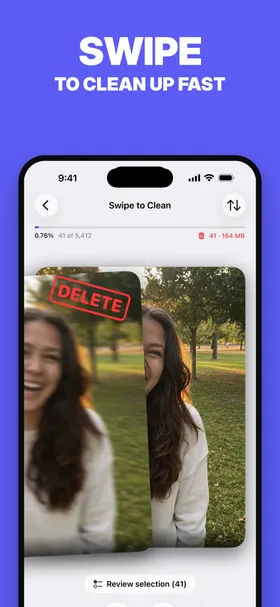
Triages your whole library one card at a time (swipe right to keep, left to delete), opening on a wall of months so the backlog no category filter will catch arrives in piles you can finish.
iPhone · iPad · Apple silicon Mac
Detection
How PhotoBroom finds them
Every photo and video in the library is dealt as a card, newest first, behind a wall of months you can enter at any point — each month carrying its own best photograph, which develops from a faded print into full colour as you clear it. Swiping only marks a decision; nothing is removed until you commit the session, so a swipe is never destructive on its own.
How you review them
A full-screen card deck with a month index over it. The progress bar measures the month you are in rather than the whole library, and finishing one is marked before the next begins; a month is where you enter the deck, not a boundary around it, so the cards keep coming. Decisions persist between sessions, so you can put it down and pick it up where you left off.
Questions
Does deleting swipe to clean in PhotoBroom remove them permanently?
No. PhotoBroom deletes through the standard iOS photo confirmation sheet, so nothing is removed without your explicit approval, and everything you delete goes to Recently Deleted in the Photos app, where iOS keeps it for 30 days before removing it for good. If you change your mind, recover it from there.
Is Swipe to Clean free to use in PhotoBroom?
Yes. Every cleanup category in PhotoBroom is free to browse and clean, and scan results are never hidden behind a paywall. Free users can delete 50 items of any type per calendar day, plus 2 large videos. PhotoBroom Pro removes that daily limit.
What does PhotoBroom need to find swipe to clean?
PhotoBroom needs photo library access and runs on iPhone and iPad with iOS 18.0 or later. It works with limited library access if you would rather grant only part of your library. All analysis happens on your device; no media is uploaded and no account is required.
The other categories
Similar Photos
Groups near-identical shots, like the six frames you fired off to get one good one, and lets you keep the best and remove the rest.
Screenshots
Collects every screenshot in your library into one grid so a year of receipts, maps and chat captures can go in a single pass.
Low Scored Photos
Surfaces your weakest shots (blurred, badly framed, accidental), rated by an on-device model, worst first.
Screen Recordings
Gathers screen recordings, which are usually long, large, and watched exactly once.
Large Videos
Lists videos above a size threshold you set: the handful of files quietly holding most of your storage.
Short Videos
Finds the accidental one-second clips from a mis-pressed shutter, below a duration you choose.